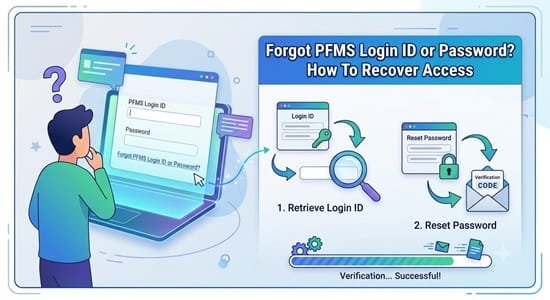
Forgot PFMS login ID or password? The fix depends on which one you’ve lost, because PFMS treats them very differently. A password is yours to reset in a few minutes from the login page. A login ID can’t be recovered through a public link at all; it has to be looked up by whoever created your user account. Add OTPs that stop arriving, fingerprint keys on new computers and accounts disabled after transfers, and a “simple” lockout can take days if you knock on the wrong door. This guide helps you identify your situation first, then go straight to the person or option that can actually fix it.
| Your situation | Fastest fix | Who can help |
| Know your login ID, forgot password | Forgot Password link on the login page | You, with OTP |
| Forgot login ID (official user) | Ask the user who created your account | Agency admin, DDO or PAO, depending on role |
| Forgot login ID (employee for pay slips) | Try PAN, then Aadhaar, then Employee Code | DDO’s establishment section |
| Forgot agency’s login ID | It’s the Unique Agency Code used at registration | Agency’s registration records or approving authority |
| OTP not arriving | Check registered mobile; try the Sandes app | Whoever created your user, to update the number |
| Reset email not arriving | Check spam and confirm registered email | User creator, to correct the email |
| FIDO sign-in fails on a new computer or key | Register the device again | Your PAO’s system administrator |
| Account disabled after transfer | New user registration in the new office | DDO or PAO of the new office |
| Still stuck after all of the above | Raise a grievance with role and codes | PFMS helpdesk; EIS team for employee logins |
Start Here: Password or Login ID?
Look at what the login screen tells you. If PFMS accepts your login ID but rejects the password, it’s a password problem and you can fix it yourself. If you don’t know what to type in the login ID box, or the system says the user doesn’t exist, it’s a login ID problem and you need help from above.
Getting this right first saves a day of emails to the wrong office.
Recovering a Forgotten Password
Click Forgot Password on the login page, enter your login ID or registered email, and verify with the OTP. Once your details are validated, PFMS shows the option to set a new password. This works for every type of PFMS user, from agency operators to DDO Makers.
Two things trip people up here:
- The OTP goes to the mobile and email registered against your user, not the ones you use today. If you’ve changed numbers since your account was created, the reset will fail until your details are updated.
- Repeated guessing before resetting can make things worse. If you’re unsure of your password after two attempts, reset it instead of trying more combinations.
Recovering a Forgotten Login ID
No public “forgot login ID” option exists for official users. Your ID can only be retrieved by the user who created it, through the user management option in their own login. So the route depends on your role:
| Your role | Who to ask |
| Agency data operator or approver | Your agency’s admin user |
| Agency admin | Check registration records for the Unique Agency Code |
| DDO Maker or DDO Checker | Your DDO |
| DDO | Your Pay and Accounts Office |
| Employee using EIS | Your DDO’s establishment section |
Employees have it slightly easier. Their login ID is set automatically in a fixed order (PAN first, then Aadhaar, then the 12-character Employee Code), so trying those three in sequence often solves it without asking anyone.
When you do ask, write down your login ID somewhere safe in your office records. Store the ID only, never the password.
When OTPs Stop Arriving
An OTP problem usually means the contact details behind your account are outdated. Try these in order:
- Check signal and SMS inbox space on the registered phone.
- Install the Sandes app and register it with the same mobile number linked to your PFMS user. OTPs can be delivered there when SMS is slow.
- Get your mobile number updated. For official users, ask the person who created your account. For employees, the DDO’s office can capture a corrected mobile number or email through the EIS changes menu.
Employees need both a mobile number and a government or NIC email on record for their login to function at all, so a missing email can look like an OTP failure.
FIDO Sign-In Problems for Treasury Users
Treasury users at PAOs sign in with FIDO, which ties your identity to a specific security key or Windows Hello on a specific computer. That design is secure, but it means:
- A new computer or replaced security key won’t recognise you until the device is registered again.
- A reset security key loses its stored fingerprint, so you’ll need to set the PIN and fingerprint afresh before registering with PFMS.
- Moving between offices may mean a new machine and a new registration.
If re-registration options don’t appear for you, your PAO’s system administrator is the first stop.
When Your Account Has Been Disabled
Logins are routinely disabled when an official is transferred, retires or leaves a role. Recovering the old ID usually isn’t the goal. Instead:
- At a new office, register as a fresh user there.
- If you’re still in the same office and were disabled by mistake, the DDO or PAO who manages users can re-enable you.
- Any pending approvals under the old ID need to be handled by whoever now holds the role.
What to Keep Ready Before Contacting Anyone
Help arrives faster when the right details come in the first message:
- Your full name, designation and role on PFMS (operator, approver, DDO Maker, DDO Checker, employee)
- Your login ID, if you know it
- Agency name and Unique Agency Code, for agency users
- Controller Code, PAO Code and DDO Code, for office and EIS users
- Employee Code and DDO Code, for employee logins
- Registered email and mobile number
- A screenshot of the exact error message
For issues your office can’t solve, the PFMS helpdesk accepts grievances online and at helpdesk-pfms@gov.in. Employee login issues in EIS go to pfms-eis@gov.in.
Avoiding the Next Lockout
A few habits prevent most repeat problems:
- Use an official email that stays with the office, especially for agency admin accounts.
- Update your mobile number in PFMS the same week you change it with your bank or office.
- Keep a written record of login IDs in office files, never passwords.
- Renew DSCs before they expire, so approvals don’t stall while you sort out access.
- Never share credentials to clear a backlog. Each action is recorded against the login used.
FAQs
Q1. Can I recover my PFMS login ID myself?
A: No, official users must ask the person who created their account, while employees can try their PAN, Aadhaar or Employee Code.
Q2. How do I reset my PFMS password?
A: Use Forgot Password on the login page, verify with the OTP and set a new password once your details are validated.
Q3. Why am I not getting the PFMS password reset OTP?
A: Your registered mobile or email is probably outdated, so ask the user who created your account to update it.
Q4. What is the login ID for a PFMS agency account?
A: It’s the Unique Agency Code entered when the agency was registered.
Q5. Who can find my DDO login ID?
A: The Pay and Accounts Office that created your DDO user can look it up.
Q6. What should I do if FIDO login fails on a new computer?
A: Register the device again, and contact your PAO’s system administrator if the option doesn’t appear.
Q7. Can a disabled PFMS account be restored after transfer?
A: Usually you register as a new user in the new office instead of restoring the old ID.
Q8. Where can employees get help with EIS login problems?
A: Check with the DDO’s office first, then email pfms-eis@gov.in with your Employee Code and DDO Code.