How to log in to PFMS changed in October 2025, when treasury users at Pay and Accounts Offices were moved to a new web address and a fingerprint-based sign-in. Agency users, programme divisions and other offices still sign in on the familiar portal, but with OTP checks that didn’t exist a few years ago. So the right steps depend on who you are and which desk you work at. This guide covers both routes, plus getting your first login ID, signing in with OTP or FIDO, enrolling a digital signature and fixing the errors that lock people out most often.
| Particular | Details |
| Login portal for agencies and most users | pfms.nic.in |
| Login portal for PAO treasury users | gifmis.cga.gov.in (in use since 6 October 2025) |
| Who issues login IDs | The registering or parent authority, not the user |
| Basic credentials | Login ID, password and captcha |
| Second check | OTP on the registered mobile, also available on the NIC Sandes app |
| Treasury user authentication | FIDO, using a fingerprint security key or Windows Hello |
| Selection at login | Financial year |
| Signature for approvals | Class 3 Digital Signature Certificate (DSC) |
| Browser guidance | A user guide for Microsoft Edge is published on the portal |
| Password recovery | Forgot Password, verified by OTP |
| Login needed to check a DBT credit | No |
Who Gets a PFMS Login
PFMS logins are work accounts. They’re issued to people who handle government funds: officials in implementing agencies, programme divisions, Drawing and Disbursing Officers, Pay and Accounts Offices and state treasuries. A student or farmer waiting for a payment doesn’t need one.
Nobody creates a PFMS account for themselves the way you’d sign up for email. Every login ID traces back to an organisation registered on the system and approved by an authority above it.
Getting Your Login ID in the First Place
For an implementing agency, the usual path looks like this:
- Register the agency. The agency fills in its registration details on PFMS, including its name, address, scheme, PAN where applicable, and the bank account that will handle scheme funds.
- Wait for approval. The sanctioning authority or the state’s scheme manager reviews and approves the registration. The bank account is validated against the bank’s records at this stage.
- Receive admin credentials. Once approved, the agency’s admin login ID and a temporary password are sent to the registered email address.
- Create working users. The admin logs in and creates separate users for day-to-day roles, typically a data operator who prepares entries and an approver who authorises them.
Each person should have their own user ID. When an officer is transferred, the new incumbent gets a fresh ID instead of inheriting the old password, because every action on PFMS is recorded against the user who performed it.
Step-by-Step: Logging In on pfms.nic.in
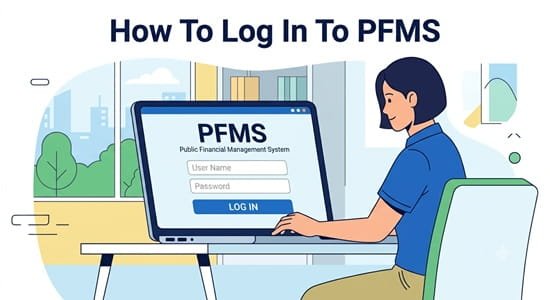
- Open the portal. Type pfms.nic.in directly into your browser rather than clicking a link from a search result, since lookalike websites are common.
- Click Login. You’ll find it near the top of the homepage.
- Select the financial year. Pick the year you want to work in. This matters more than it seems; see the troubleshooting section below.
- Enter your login ID and password. Both are case-sensitive.
- Fill in the captcha. Type the characters exactly as shown. If they’re hard to read, refresh the captcha instead of guessing.
- Enter the OTP. A one-time password is sent to the mobile number registered against your user ID. Type it in before it expires.
- Change your password on first login. If you’re using a temporary password, the system will ask you to set a new one. Use a mix of upper and lower case letters, numbers and a symbol.
- Check your profile. Confirm your mobile number and email are correct, since every future OTP and password reset depends on them.
Treasury Users: The GIFMIS Address and FIDO Sign-In
The CGA moved all treasury users of PAOs to gifmis.cga.gov.in from 6 October 2025 to handle growing user load and improve speed. If you work on treasury functions at a PAO, bookmark this address instead of the old one.
These users also sign in with FIDO, a passwordless standard where your identity is confirmed by a fingerprint on a hardware security key or by Windows Hello. Registration happens once:
- Log in and open FIDO Registration. Choose your user type, user status and login ID, then click Search.
- Register your fingerprint on the device. Click the FIDO device icon, set a security key PIN when prompted, and record your fingerprint on the key. On a computer running Windows 10 or later, you can instead set this up through Windows Hello under sign-in options, using the Security Key setting.
- Register with PFMS. Click “FIDO Registration with PFMS” to link the device to your user ID.
Anyone who registered for FIDO on the old address needed to register again after moving to GIFMIS, so if FIDO login fails on a machine you used before October 2025, re-registration is the first thing to try.
Getting OTPs on the Sandes App
PFMS can deliver OTPs through Sandes, the government’s own messaging app built by the National Informatics Centre. Install it from your phone’s app store, register with the same mobile number linked to your PFMS user ID, and OTPs will arrive inside the app.
This helps in offices where SMS delivery is slow or patchy, especially during month-end and year-end rushes when thousands of users are logging in together.
Enrolling Your Digital Signature After Login
Approvers can’t authorise payments with just a password. They need a Class 3 Digital Signature Certificate registered against their user ID. Class 2 certificates are no longer issued in India, so older tokens may need replacing.
The general process:
- Insert your DSC token into the computer and make sure its driver is installed.
- Install and run the signing utility linked on the PFMS portal, which lets the browser read your token.
- After logging in, go to the DSC enrolment option, select your certificate and submit.
- Your enrolment then goes to the authority above you for approval. Until it’s approved, signing won’t work.
Certificates have an expiry date, usually one or two years. Renewing a few weeks in advance avoids a gap where payments pile up waiting for your signature.
Resetting a Forgotten Password
- Click Login on the homepage, then Forgot Password.
- Enter your login ID or registered email address.
- Verify the login ID or request an OTP, depending on the option you chose.
- Enter the OTP received on your mobile or email.
- Set a new password and log in again.
If your registered mobile number has changed and OTPs aren’t reaching you, the reset won’t work. Your agency admin or the authority that created your user ID can update your details.
Login Problems and Quick Fixes
- Data seems to be missing after login. Check the financial year selected on the login screen. Entries from 2025-26 won’t appear if you’ve signed into 2026-27.
- OTP never arrives. Confirm the mobile number in your profile, then try receiving it on the Sandes app.
- Old bookmark stopped working for treasury tasks. Switch to gifmis.cga.gov.in and register FIDO if prompted.
- DSC not detected. Make sure the signing utility is running, the token is plugged in firmly and the certificate is Class 3 and still valid.
- Captcha keeps failing. Refresh it, and clear your browser cache if the image doesn’t change.
- User ID deactivated. IDs are often disabled after a transfer or long inactivity. Your admin or parent authority can reactivate it or issue a new one.
Never share your login ID, password or DSC PIN with a colleague, even to clear a backlog. Every approval carries the name of whoever’s credentials were used.
FAQs
Q1. What is the official PFMS login website?
A: Most users log in at pfms.nic.in, while PAO treasury users log in at gifmis.cga.gov.in.
Q2. Can I create a PFMS login on my own?
A: No, login IDs are issued after your organisation is registered and approved, or by your agency’s admin user.
Q3. Do I need an OTP to log in to PFMS?
A: Yes, an OTP is sent to your registered mobile number, and it can also be received on the NIC Sandes app.
Q4. What is FIDO login in PFMS?
A: It’s a fingerprint or security-key-based sign-in used by treasury users at Pay and Accounts Offices.
Q5. Which DSC class is needed for PFMS?
A: A valid Class 3 Digital Signature Certificate is needed to approve and sign transactions.
Q6. Why can’t I see my old entries after logging in?
A: You may have selected a different financial year on the login screen.
Q7. How do I reset my PFMS password?
A: Use the Forgot Password option, verify your login ID or email with an OTP, and set a new password.
Q8. Do students need a PFMS login to check scholarship payments?
A: No, scholarship and other DBT credits can be checked without logging in.