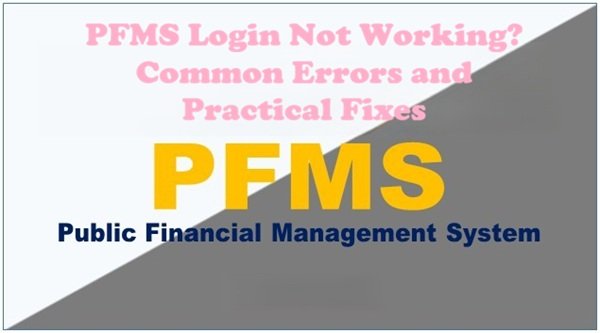
PFMS login not working at 4:45 pm on the last working day of March is a different problem from PFMS login not working on a quiet Tuesday morning. The first is usually load: thousands of offices racing to clear bills before the financial year closes. The second is usually something on your own computer, such as a stale browser cache, a wrong system clock, a blocked pop-up or a signing token the browser can’t see. Sorting out which kind of failure you’re facing is half the fix. This guide groups the common symptoms by cause and gives a practical fix for each.
| What you see | Likely cause | Practical fix |
| Page won’t load or loads very slowly | Peak-hour load or maintenance | Retry outside rush hours; check homepage notices |
| “Your connection isn’t private” warning | Wrong date or time on your computer | Correct the system clock and time zone, then reload |
| Login button does nothing | Browser extension or blocked script | Try an InPrivate or Incognito window with extensions off |
| Old or broken page layout | Stale browser cache | Clear cache and cookies for the site |
| Signing or report window never opens | Pop-up blocker | Allow pop-ups for the PFMS site |
| Logged out in the middle of work | Session timeout or multiple tabs | Use one tab per login; save work often |
| Blank menus after login | Role not mapped or module not authorised | Ask the user who created your account |
| DSC not detected | Token driver, signing utility or USB issue | Reinstall driver, restart utility, change USB port |
| FIDO key rejected | Wrong PIN, locked key or unregistered device | Reset key PIN or register the device again |
| Works at home, fails in office | Office firewall or proxy | Ask your IT team to allow the PFMS address |
First, Rule Out the System Side
Before changing anything on your computer, check whether the problem is bigger than you:
- Month-end, salary processing days and the last fortnight of March bring the heaviest traffic. Slow responses and timeouts at these times usually ease within an hour or two.
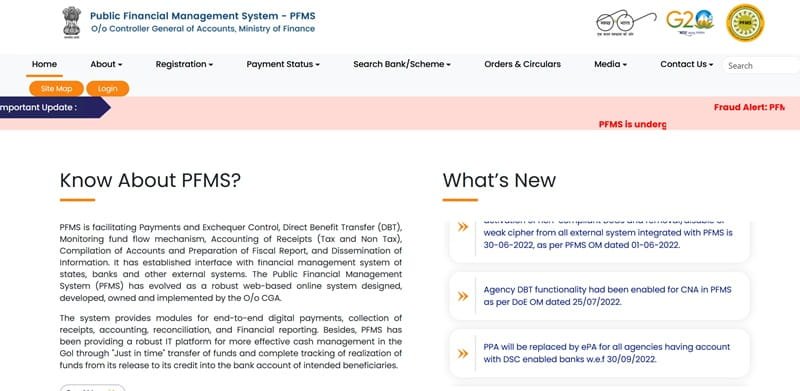
- Homepage notices. PFMS posts maintenance and update notices in its What’s New section. A planned shutdown explains a lot.
- If others in your office can’t log in either, it’s not your machine.
- Another network. Try the same login on mobile data through a laptop hotspot. If it works there, your office network is the issue.
If the problem is clearly on the system side, avoid repeated clicking on Submit or Login. Duplicate submissions during slowdowns can create confusion that takes longer to untangle than the wait itself.
Fix the Computer Before the Credentials
Check the Date and Time
A computer clock that’s off by even a day can make secure websites appear unsafe, because security certificates are checked against the current date. If you see a privacy or certificate warning on a government site you use every day, fix the clock first. On Windows, turn on “Set time automatically” and confirm the time zone is India Standard Time.
Use a Current Browser
PFMS publishes a guide for using Microsoft Edge in its What’s New section, which is a good reference for office machines. Whichever browser you use, keep it updated. Very old versions can fail on login pages in ways that look like password errors.
Clear the Cache for the Site
Browsers save copies of pages to load them faster. After PFMS updates its pages, an old saved copy can break buttons or show outdated layouts. Clearing cache and cookies, then reopening the browser, resolves many “nothing happens when I click” problems.
Switch Off Extensions
Ad blockers, translation tools, password managers and screen-reading add-ons sometimes interfere with captchas and login forms. A quick test: open an InPrivate (Edge) or Incognito (Chrome) window, where extensions are usually off by default. If login works there, disable extensions one by one in your normal window to find the culprit.
Watch Out for Autofill
Browsers often fill in an old saved password without telling you. If you recently changed your PFMS password, delete the saved entry in your browser settings and type the new one manually.
Allow Pop-Ups
Signing screens, reports and some confirmation windows open as pop-ups. If a pop-up blocker is on, the action silently fails. Allow pop-ups for the PFMS address in your browser’s site permissions.
Session Problems After You Get In
Logging in successfully and then being thrown out is a separate issue:
- One login, one tab. Opening the same user in several tabs or browsers can end earlier sessions without warning.
- Avoid the back button during multi-step entries. Use the portal’s own navigation links instead.
- Don’t leave a session idle while you gather documents. Inactive sessions expire for security, and unsaved entries are lost.
- Don’t refresh during submission. If a page seems stuck after clicking Submit, wait and check the record before trying again.
When Menus or Options Are Missing
If you can log in but don’t see the screens you need, it’s almost always a permissions issue rather than an error. Each PFMS user is given access to specific modules and functions. A DDO user without EIS authorisation, for example, won’t see salary options. The fix is a request to the user who created your account, stating the exact module or menu you need.
DSC Errors While Signing
Digital signature problems cause more stalled approvals than password issues. Work through these in order:
- Check the token. Make sure it’s firmly plugged in. Try a different USB port, preferably one directly on the computer rather than a hub.
- Check the driver. Reinstall the token driver from your certificate provider if the computer doesn’t recognise the device.
- Check the signing utility. The PFMS signer utility must be installed and running in the background. Restarting it often clears detection problems.
- Check the certificate. Confirm it’s a valid Class 3 certificate and hasn’t expired.
- Check enrolment. A new certificate must be enrolled on PFMS and approved before it can sign. If you’ve replaced an old certificate, the old one may need to be deactivated through DSC management options under Masters.
- Pick the right certificate. If your token holds more than one certificate, select the one enrolled on PFMS.
FIDO Sign-In Trouble for Treasury Users
FIDO sign-in depends on hardware, so most failures are physical:
- Windows Hello needs Windows 10 or later. Older systems can’t use it.
- Security keys lock after repeated wrong PINs. If yours is locked, it may need a reset, which also wipes the stored fingerprint and requires registering again.
- Fingerprint not read. Clean the sensor, use the same finger registered earlier and press steadily.
- New computer or replaced key. FIDO is tied to the device, so a new one needs fresh registration.
Office Networks and PFMS
Government offices often route internet traffic through firewalls or proxies. If PFMS works on mobile data but not on the office connection, the network is blocking part of the site. Share the exact address you use (pfms.nic.in or gifmis.cga.gov.in) with your IT or NIC support team and ask them to allow it.
Mobile Phones Have Limits
Public tools like payment checks work fine on a phone. Official tasks are a different matter. DSC signing and FIDO sign-in depend on desktop hardware and software, so approvals and treasury work should be done from a configured computer.
When to Report It
If nothing above works, report the issue with details that make it reproducible:
- A screenshot showing the error and the time it occurred
- Your browser name and version, and operating system
- What you clicked just before the error
- Your role and login ID
The PFMS helpdesk accepts online grievances and email at helpdesk-pfms@gov.in.
FAQs
Q. Why is PFMS not opening at month-end?
Heavy traffic during month-end and year-end processing can slow the portal, so try again outside peak hours.
Q. Why does my browser show a privacy warning on PFMS?
Your computer’s date or time is likely wrong, so correct the system clock and reload the page.
Q. Which browser works best for PFMS?
Keep any modern browser updated; PFMS also publishes a user guide for Microsoft Edge.
Q. Why do I get logged out of PFMS repeatedly?
Using the same login in multiple tabs or leaving the session idle can end it, so work in one tab and save often.
Q. Why can’t I see certain menus after logging in?
Your user may not have access to that module, so ask the person who created your account to add it.
Q. Why is my DSC not detected on PFMS?
Check the USB connection, reinstall the token driver and make sure the PFMS signing utility is running.
Q. Can I approve PFMS payments from a mobile phone?
No, DSC signing and FIDO sign-in require a configured desktop or laptop.
Q. What should I include when reporting a PFMS login error?
Include a screenshot with the time, your browser and system details, the steps that led to the error, and your role and login ID.